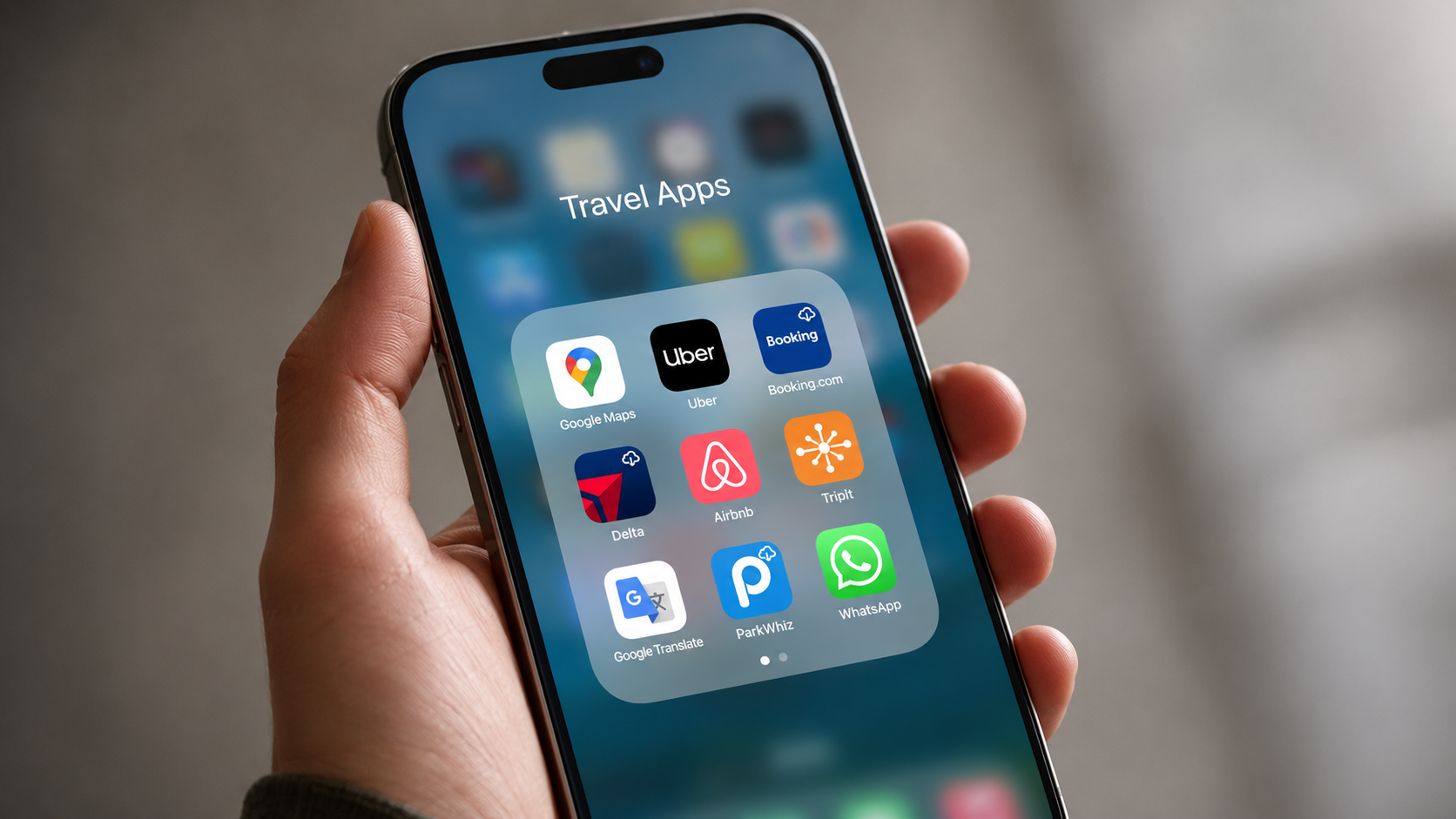
If you’re like me, there are probably hundreds of functions and settings on your phone that you don’t even know exist. Most of the time, that’s fine. You install an update, leave the default settings alone, and go about your day.
That is, until one of those settings causes a problem.
I only noticed this one because several apps on my iPhone suddenly had little cloud icons next to them. At first, I thought something was wrong. Then I realized the apps hadn’t disappeared by accident. My phone had removed them to save space.
That might not sound like a big deal if you’re sitting at home with fast Wi-Fi.
But if you’re traveling and suddenly need your airline app, hotel app, map app, rideshare app, parking app or translation app, finding out that it has to be downloaded again can be a real problem.
That’s why this is one phone setting I’d check before your next trip.
What Is “Offload Unused Apps”?
Apple introduced “Offload Unused Apps” in iOS 11, and it’s still built into current versions of iOS. The idea is simple: if your iPhone needs storage space, it can remove apps you haven’t used in a while while keeping the app’s documents and data.
That sounds helpful. And for some people, it probably is.
But it can also create a problem if your phone decides that an app you rarely open is one you don’t need. That might be fine for a random shopping app. It’s a lot less fine if it happens to a hotel app, airline app, map app, parking app, rideshare app or translation app right before a trip.
Here’s what I found on my phone:


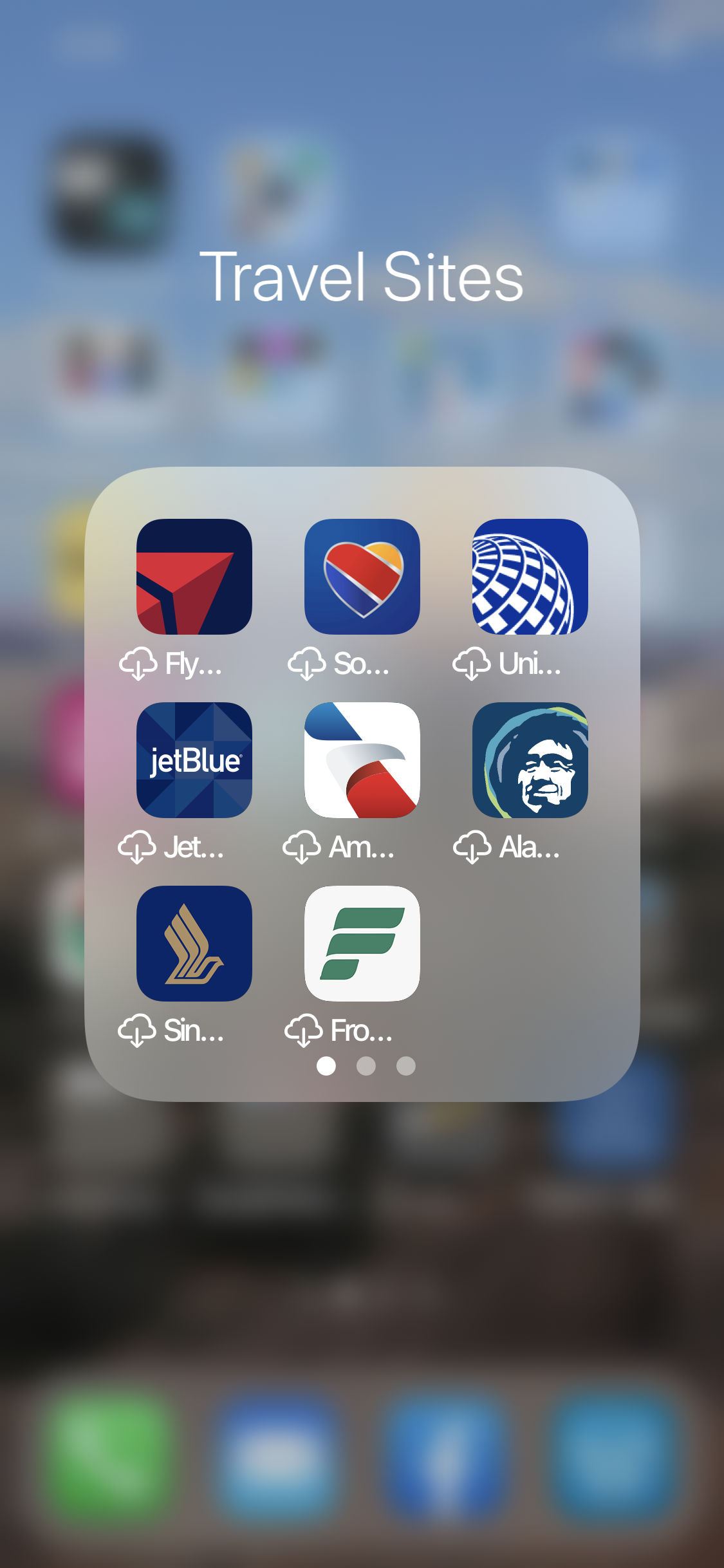

See the little cloud icons next to the apps? That means those apps are no longer fully installed on my phone. If I tap one, the iPhone has to download the app again before I can use it.
Why This Can Be a Problem While Traveling
That may not be a big deal if you’re sitting at home with a strong Wi-Fi connection. But if you’re traveling, it can become a problem quickly.
You might be at an airport, train station, hotel front desk, rental car counter or somewhere overseas where your connection is slow, limited or nonexistent. That’s not when you want to discover that your app needs to be downloaded again before you can use it.
Apple says that when an app is offloaded, its documents and data are retained on the phone. That may be true in theory, but I’ve still had login information disappear when I tried to get back into some accounts. And even if Apple keeps the data, apps can refresh, update or require you to sign in again at any time. When that happens, you may suddenly need an account number, password, verification code or other information you weren’t expecting to look up while traveling.
That’s the part that bothers me. I don’t have much control over which apps the phone decides I’m not using often enough to keep installed. Some travel apps may sit unused for months, but when I need them, I really need them.
If my phone thinks it needs more storage space, I’d rather choose what gets removed instead of finding out later that it picked something I actually wanted to have ready.
How to Turn It Off (And Why I Did)
I’m not short on storage space on my phone, so I turned this feature off. I don’t want to try to use an app and find out that my phone removed it because I hadn’t used it recently.
On an iPhone, go to Settings > Apps > App Store, then look for Offload Unused Apps. If you don’t want your phone automatically removing apps you haven’t used in a while, turn that setting off.
You can also check individual apps by going to Settings > General > iPhone Storage. If an app has been offloaded, you’ll see the option to reinstall it.
If you have an Android phone, Google Play also offers “app archiving”, which works similarly. The difference is that Android gives you more control, including the ability to manually archive apps or block specific apps from being archived automatically.
Before a trip, I’d rather make sure the apps I need are actually installed than find out at the airport, train station or hotel that my phone needs to download them again.
Want to comment on this post? Great! Read this first to help ensure it gets approved.
Want to sponsor a post, write something for Your Mileage May Vary, or put ads on our site? Click here for more info.
Like this post? Please share it! We have plenty more just like it and would love it if you decided to hang around and sign up to get emailed notifications of when we post.
Whether you’ve read our articles before or this is the first time you’re stopping by, we’re really glad you’re here and hope you come back to visit again!
This post first appeared on Your Mileage May Vary