Ever since my wife, Sharon, and I started writing Your Mileage May Vary, we’ve learned just how important a reliable internet connection is when we’re on the road.
Thankfully, these days most hotel rooms offer Wi-Fi. But that doesn’t always mean it works well. Sometimes the signal is weak, the speed is painfully slow, or worse, we can’t even get online from our room. There have been plenty of nights when one of us has ended up sitting in the hotel lobby just to update the website.
Things have improved a lot since we first started traveling regularly. But a new problem cropped up when Sharon got a Chromebook. She loves how lightweight and affordable it is, especially compared to buying another MacBook. The downside is that Chromebooks are a lot less useful when they can’t get online.
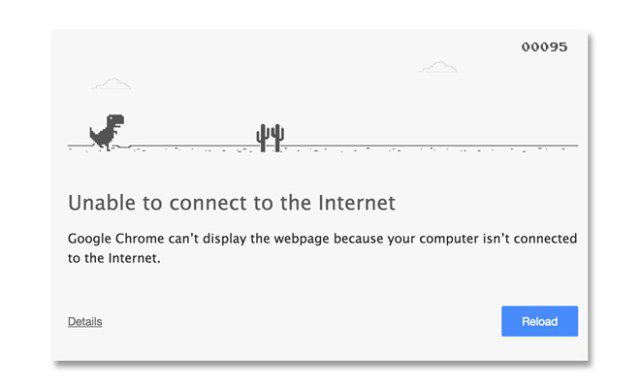
More than once, we arrived at a hotel, powered up the Chromebook, connected to the Wi-Fi and were met with a blank screen. No login page. No connection. Just frustration.
It tends to be my job to fix technically oriented issues. (Note from Sharon: That’s right, Dear. You do the techie stuff, and I do the proofreading.)
Through trial and error, and some hunting online, here are a few things I’ve found that can help when a hotel Wi-Fi login page refuses to load.
Here’s What To Try When The Hotel Wi-Fi Login Page Won’t Load
Turn Off Your VPN
We always use a VPN when traveling (and you should, too). But when trying to connect to a hotel Wi-Fi network, it’s usually necessary to temporarily disable the VPN.
Otherwise, the VPN may block the hotel’s login page from loading.
Once I’m connected, I turn the VPN back on before doing anything else online. I also open a new browser window and avoid loading other pages until the VPN is active again.
Reload Any Webpage
Sometimes, it’s as easy as refreshing the page.
This would usually trigger the login screen on our MacBook. Oddly enough, that trick doesn’t always work with the Chromebook. Still, it’s worth trying, especially on phones, tablets and laptops.
Try A Plain HTTP Website
Hotel Wi-Fi login pages often fail to appear when your browser first tries to load a secure HTTPS site. Instead, try typing a plain HTTP address into your browser.
You can try something simple like:
Because these pages don’t automatically force a secure connection, they sometimes do a better job of triggering the hotel’s captive portal.
Go Directly To The Captive Portal Test Page For Your Device
Each operating system tries to check a specific address when it connects to a Wi-Fi network. Manually visiting one of those addresses can sometimes force the login page to appear.
- Apple iOS and macOS: captive.apple.com
- Microsoft Windows: www.msftconnecttest.com/connecttest.txt
- Older Windows test page: www.msftncsi.com/ncsi.txt
- Google Android and Chrome: google.com/generate_204
Just type the appropriate address into your browser’s URL bar and see if it redirects you to the hotel’s login page.
Try Deleting Third-Party Wi-Fi Apps
If you’ve installed apps that help you find Wi-Fi networks, they might keep you from logging into other networks.
Since removing those from my phone, I’ve run into fewer issues.
Visit The Hotel Brand’s Website
This one is hit or miss, but it’s worked enough times to earn a spot on the list.
Try going directly to the homepage of the specific hotel brand you’re staying at, not just the parent company’s main website.
For example:
- If you’re at a Courtyard by Marriott, try the Courtyard website, not just marriott.com.
- We once had trouble with a Waldorf Astoria login page until we found that
www.waldorfastoria.comredirected us to the right place.
Sometimes visiting the hotel’s own site forces the Wi-Fi login page to load. I’ve even started leaving the hotel brand’s page open in a browser tab before we leave for a trip, just in case.
Open An Incognito Or Private Browser Window
If the login page still won’t appear, try opening a private or incognito browser window and loading a plain HTTP website.
Sometimes cookies, cached pages or browser extensions can interfere with the captive portal. A private window gives you a cleaner starting point.
Try The Router’s Default Page
Another trick is to type one of the common router addresses into your browser:
192.168.1.1192.168.0.110.0.0.1
This doesn’t always work, but when it does, it can trigger the hotel’s login screen.
Search Online For Help Before You Need It
There are times when nothing seems to work, especially in hotel lobbies, conference areas or large resorts with complicated Wi-Fi systems.
One article that helped me in a pinch was this one from Zapier. It’s Mac-focused in places, but several of the tips, such as opening the router’s IP address or using a private browser window, can work across devices.
Since you probably won’t have internet access when this happens, it’s not a bad idea to save a copy of the article before your trip.
Final Thoughts
Hotel Wi-Fi has come a long way, but connecting isn’t always smooth, especially when the login page refuses to appear.
Whether it’s a VPN issue, a stubborn captive portal or your device just being picky, we’ve run into just about every roadblock out there.
These tricks have helped us get back online more times than I can count. Hopefully, at least one of them works for you, too. And if you have your own go-to fix for making a hotel Wi-Fi login page appear, I’d love to hear it.
Want to comment on this post? Great! Read this first to help ensure it gets approved.
Want to sponsor a post, write something for Your Mileage May Vary or put ads on our site? Click here for more info.
Like this post? Please share it! We have plenty more just like it and would love it if you decided to hang around and sign up to get emailed notifications of when we post.
Whether you’ve read our articles before or this is the first time you’re stopping by, we’re really glad you’re here and hope you come back to visit again!
This post first appeared on Your Mileage May Vary


1 comment
Gurl. Just do connect.microsoft.com